How To Change Login Screen of Windows
Here is a article on how to change login screen of Windows 8, 7, Vista and XP. Try this out to customize your Windows boot screen.
Read more: How To Change Login Screen of Windows »
This article explains how to change target folders for libraries in Windows 10. You can easily specify the default save locations for all Windows libraries.
One of the many powerhouse features of Windows 10 is the library functionality. First introduced in Windows 7, the libraries make it extremely easy to manage and organize content stored across multiple folders in the Operating System, from one convenient location. Based on the most common types of files, Windows 10 contains default libraries such as Documents and Videos. That being said, all of these libraries have one folder set as a default target, and all the file types falling under a particular library are automatically saved to that target folder. That’s all well and good, but what if you want to change that target location?
Not a problem, as Windows 10 makes it a walk in the park to do so. All that’s required are a few clicks here and there. Sounds like something you can use? Let’s take a granular look at how you can change target folders for libraries in Windows 10.
**
**
Step 1: It’s actually super simple to specify the target folders for all the system libraries in Windows 10. Also, the process is the same for all the system libraries. Let’s take the Pictures library as an example. To get started, open up This PC to view the listing of all the default system libraries (e.g. Downloads, Music). They are listed under the Folders sub-section, and can also be accessed via the navigation pane on the left. Now, right click on the library whose target folder you want to change, and select Properties from the context menu.
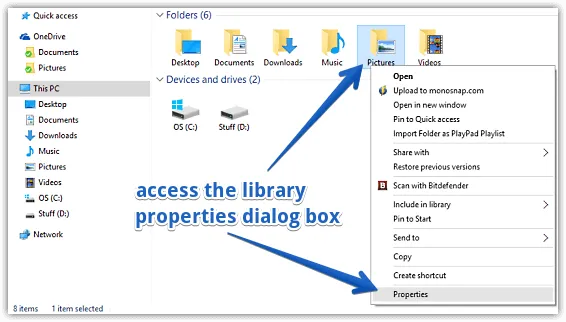
Step 2: The Properties dialog box should now come up, as I’m sure you’re already aware. Click on the Location tab, and you’ll see a text field populated with the path of the folder currently designated as the target. Simply use the Find Target button to browse for the new target folder, and set it as the default location. You can also move the contents of the existing library folder to the new target via the Move button. Once done, click Apply > OK. Here’s a screenshot:
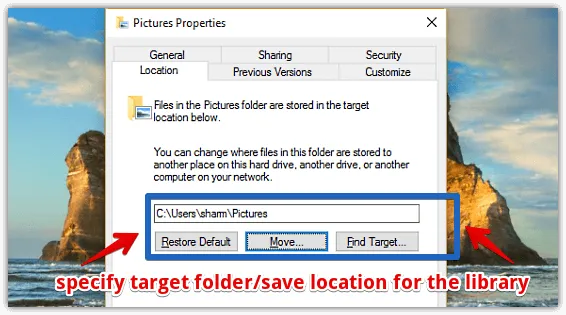
That’s it. You’ve successfully changed the default target location for a system library. The default save locations for other libraries can be changed similarly. Piece of cake, right?
Also See: How To View Update History In Windows 10?
Libraries provide an easy and hassle-free way of managing different types of file spread across multiple folders on the computer. And the fact that you can specify the default target folder locations for these libraries makes them even more incredible. Try it out, and let me know your thoughts in the comments below.
Here is a article on how to change login screen of Windows 8, 7, Vista and XP. Try this out to customize your Windows boot screen.
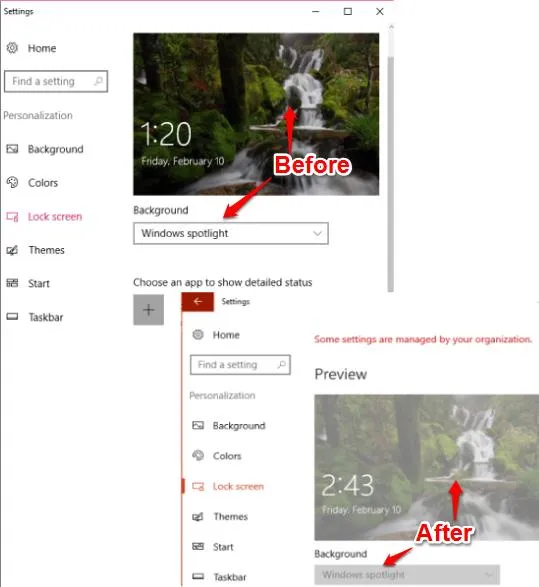
Read more: How To Change Login Screen of Windows »This guide covers how to disable lock screen wallpaper change in Windows 10. I will do this using the Group Policy and Registry Editor.
Read more: How To Disable Lock Screen Wallpaper Change In Windows 10 »This tutorial explains how to change the Mac address in Windows 10. This can be done without using any third-party plugin.
Read more: How To Change The Mac Address In Windows 10 »This tutorial details how to show hidden files and folders in Windows 10. You can bring hidden files and folders to view, via a simple option on Ribbon menu
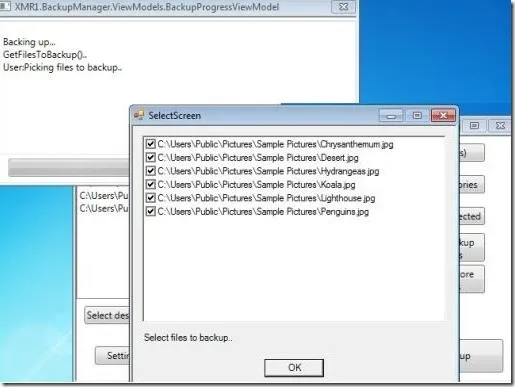
Read more: How To Show Hidden Files And Folders In Windows 10? »Checkout 5 free file backup software to create backups for file and folders: BackupManager, Synei Backup Manager, Zback, Personal Backup, and TimeDim.
Read more: 5 Free File Backup Software To Create Backups Of Files, Folders »Bvckup 2 (beta) is a folder backup software to automatically backup files and folders when they change. It can take incremental backup as well.
Read more: Free Backup Software To Automatically Backup Whenever Files Change »