How to Embed PDFs in Webpages using Adobe View?
Learn how to embed PDFs in webpages using Adobe View that gives you more control over the appearance od the PDFs on webpages.
Read more: How to Embed PDFs in Webpages using Adobe View? »
This tutorial explains how to embed YouTube videos, polls, and live websites in PowerPoint. I have used a free add-in, named LiveSlides, for this task.
This tutorial explains how to embed YouTube videos, polls, and live websites in PowerPoint. All this can be done with the help of a free PowerPoint add-in, named ‘LiveSlides‘.
Once the add-in is installed, it provides options to insert multiple choice, ranking, open ended and other questions, and also lets you insert the URL of a website or a YouTube video. Apart from YouTube, it supports Vimeo, Vine, and other websites also. The poll and video are added as separate slides in the presentation. You will be able to view the poll, play video and browse website within the presentation. Apart from that, the poll stats are also visible in the presentation. However, to vote for the poll, users need to open the poll URL in a browser.
Users (including you) have to install this add-in on PC to play video and view the poll. Also, the add-in works with MS PowerPoint 2007 (service pack 3) and higher versions.
Above you can see a poll including the stats inserted in a PowerPoint presentation using this add-in.
And in the screenshot below, you can see a Vimeo video inserted in the presentation.

Note: This add-in won’t play VEVO videos because of the restrictions. Also, it can’t display any website or webpage. You can check the homepage of this website to see the supported sites.
Step 1: Get the setup of this add-in and install it. After that, you need to open PowerPoint and you will find that LiveSlides tab is added in the Ribbon menu. Click that tab to access all the options available in it.
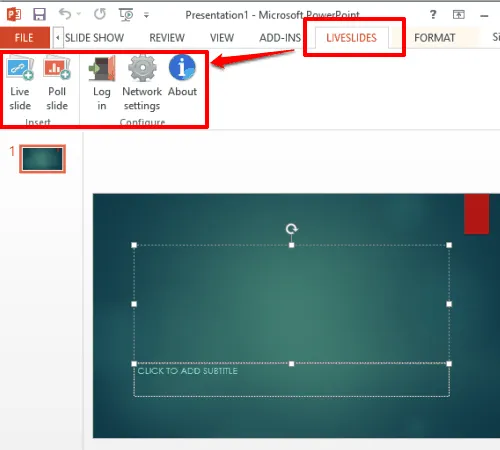
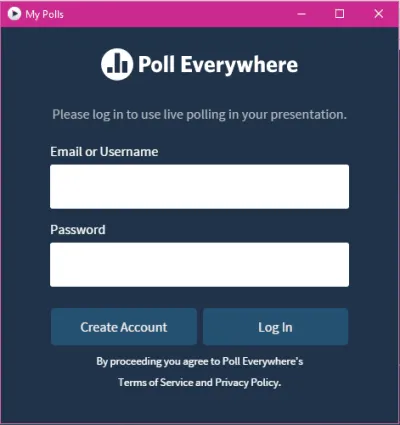
Step 2: Now you first need to create a free account using Log In button.
Step 3: After creating your free account, you can add a new poll using Poll slide option. This option provides different question types (multiple choice, clickable image, open-ended, etc.).
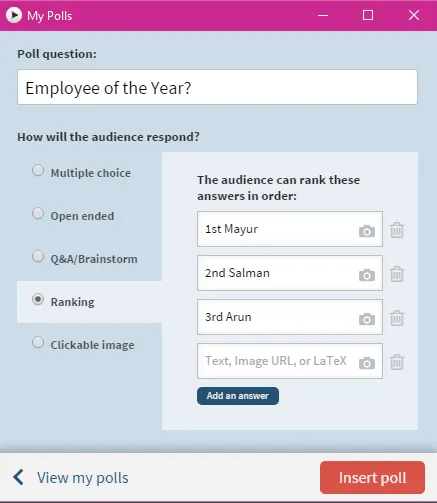
After selecting a particular question type, you can add your custom question and options (answers). Your question or poll is hosted on Liveslides website.
Step 4: To add a YouTube, Vimeo, or Vine video, you can use Live slide option. It will open a pop-up to insert the video URL.
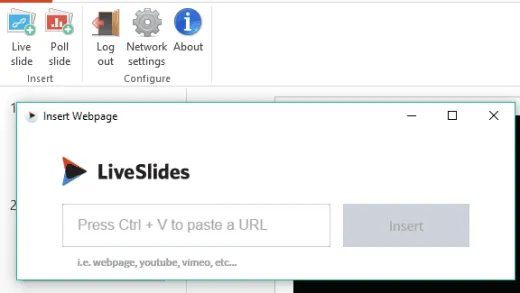
Step 5: When you save and play the presentation, you can see the poll and video added by you in the presentation. Users can see the poll (if add-in is installed), but won’t be able to directly select the answer for the inserted poll. They need to open the poll URL (visible on the slide) using which they can access and respond to the poll question.

You don’t have to open poll URL to check the poll result, as it can be done directly in the presentation.
LiveSlides is a fantastic add-in that makes PowerPoint more useful and powerful. However, I really wish there would be some option to vote for the poll directly from the presentation, but it can’t be done. Overall I can say the add-in is worth to try.
Learn how to embed PDFs in webpages using Adobe View that gives you more control over the appearance od the PDFs on webpages.
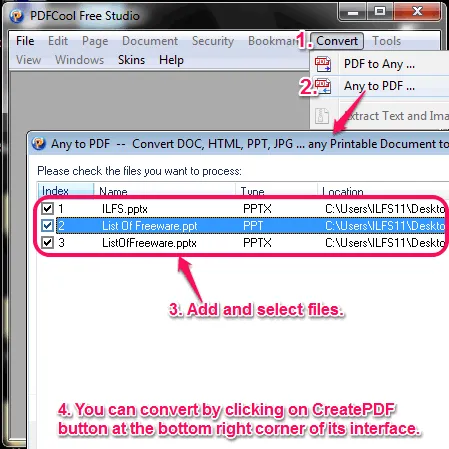
Read more: How to Embed PDFs in Webpages using Adobe View? »Here are 9 best free software to convert PowerPoint to PDF in Windows. Most of them are different from each other and some also let you adjust PDF quality.
Read more: 9 Best Free Software To Convert PowerPoint To PDF »Learn how to run Python in Google Sheets to import data, process data, and visualize data with the help of charts and graphs.
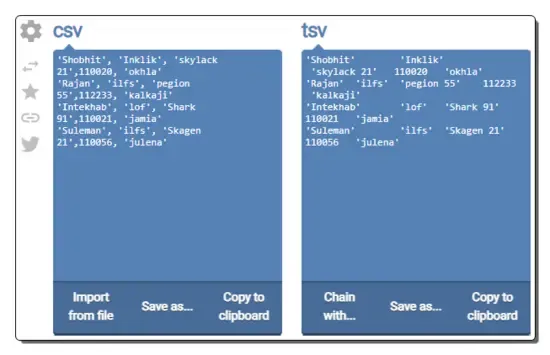
Read more: How to Run Python in Google Sheets »Check out these best free online CSV to TSV converter websites where you can convert data from CSV format to TSV format in seconds.
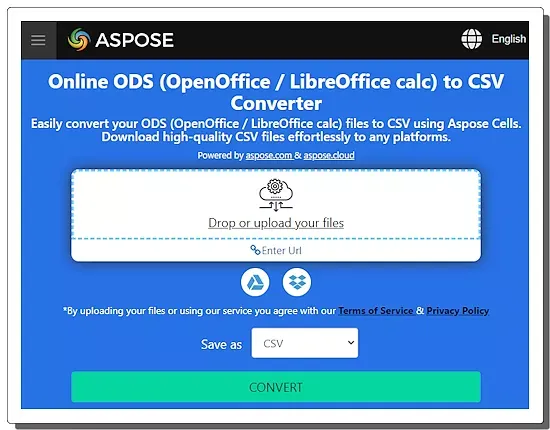
Read more: 8 Best Free Online CSV to TSV Converter Websites »Check out these best free online ODS to CSV converter websites where you can convert OpenDocument Spreadsheet data to CSV format.
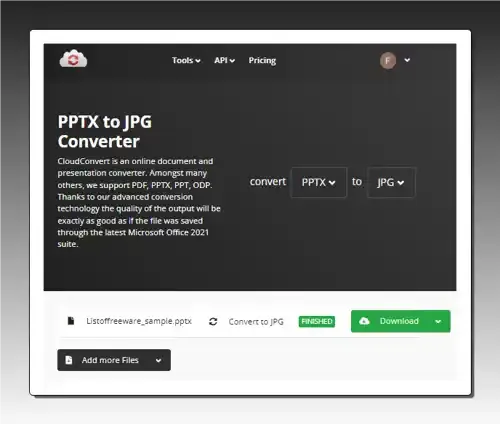
Read more: 10 Best Free Online ODS to CSV Converter Websites »Use these PPTX to JPG converter online services to quickly convert one or more PPTX files to JPG, BMP, PNG, etc., formats.
Read more: 7 Best Free PPTX to JPG Converter Online Services »