How To Change Login Screen of Windows
Here is a article on how to change login screen of Windows 8, 7, Vista and XP. Try this out to customize your Windows boot screen.
Read more: How To Change Login Screen of Windows »
Official Walgreens app for Windows 8 lets you order prescription refills, gives refill reminders, order photo prints, and locate store.
Walgreens is a official Walgreen app for Windows 8. This app helps you to refill your medicines by Rx number. If you don’t have any Rx number or prescriptions, then you can even refill by account. You can also track your Rx status and History through this Walgreens app for Windows 8. It alerts you for refill as well.
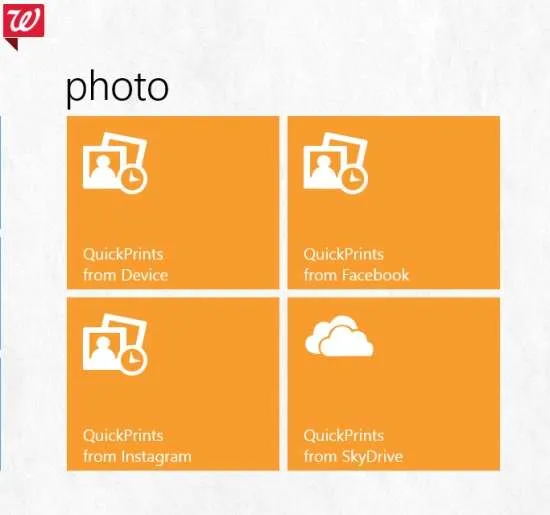
Another feature of this app is Quick Prints. You can upload photo from your PC, Facebook, Instagram, and Skydrive (Onedrive) into the app, and then can pick up the prints from the store.
The app has a store locator as well. Type your city and it will show a list of stores in that city. You can add your location or can let the app use your location to show the nearest Walgreens store as per your location.
You can get free Walgreens app from Windows store by using the link given at the end of this review.
After launching the app, you will find different options: Pharmacy, Photo, Store Locator, and Balance Rewards.
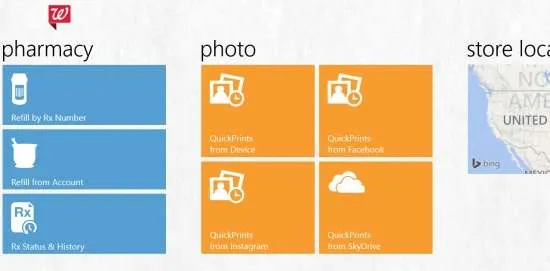
The very first thing you should do is log in into your Walgreens account, if you already have an account, else you can create one. To Login/Register click on the settings options of Windows 8 side bar.
Note: I am not located in US so I wasn’t able to test all the features of the app.
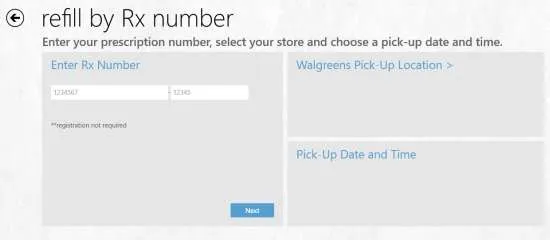
Now, if you want to refill by Rx number, then click on refill by Rx number option within Pharmacy. You will get an option where you can enter your prescription number, select a store near your location or as per your preference. And then choose a date and time to pick up the prescription.
If you don’t have Rx, then you can refill using your account as well. To refill as per your account, click on refill by account option.
You can also track the Rx status and history within the app.
Choose photos from your Windows 8 PC, Facebook, Instagram, and Skydrive (Onedrive) to print them. You can upload upto 100 photos at a time and then can pick up from local Walgreens in a few hours.
Store Locator:
Store Locator lets you find the store near your location. You can even search for store by typing the city, state, and Zip Code. You will get relevant result.
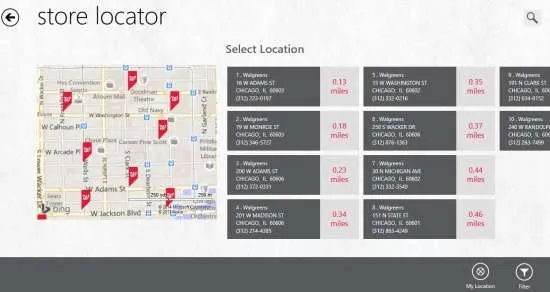
You can click on any store location to check its details, like: services, store hours, pharmacy hours, etc.
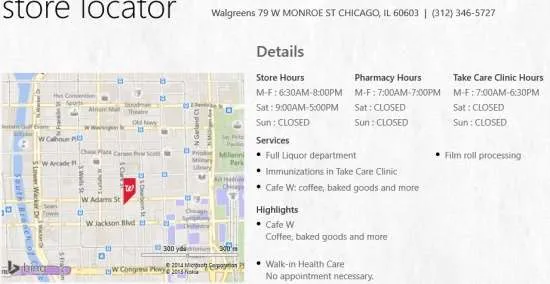
You can even get directions from your location to the store using the directions at the bottom of the screen.
Also check out some other Windows 8 health apps: Home Doctor, Windows 8 BMI and Calorie Calculator, and Digital Health Scorecard.
Walgreens is a useful app for Windows 8. The different features of the app, like: refill reminder, refill by Rx, refill by account makes the app very useful. You can also use store locator to locate nearest Walgreens store as per your location. You should definitely try this official Walgreens app for Windows 8.
Here is a article on how to change login screen of Windows 8, 7, Vista and XP. Try this out to customize your Windows boot screen.
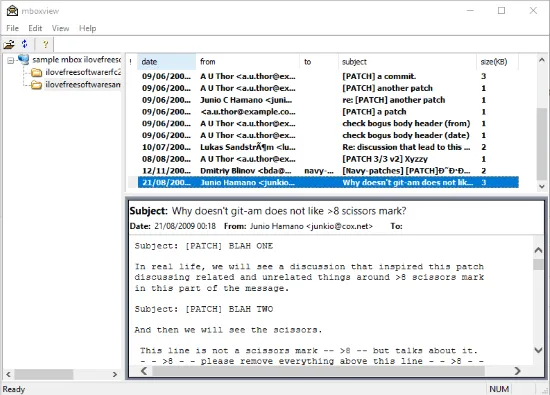
Read more: How To Change Login Screen of Windows »Here are 3 free MBox viewer software for Windows. You can add MBox file on the interface, see the list of all email messages, and view its content.
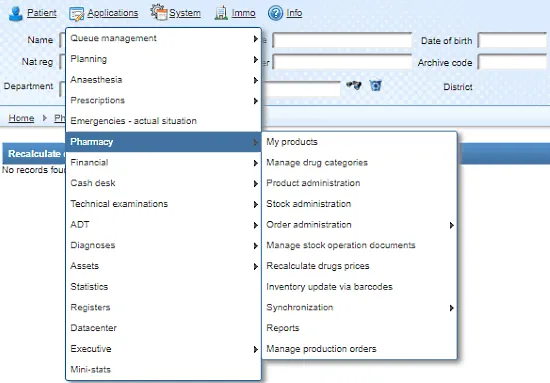
Read more: 3 Free MBox Viewer Software for Windows »This article covers a free medicine management software for Windows. This software helps you manage pharmaceutical records including product Inventory, stock, orders…
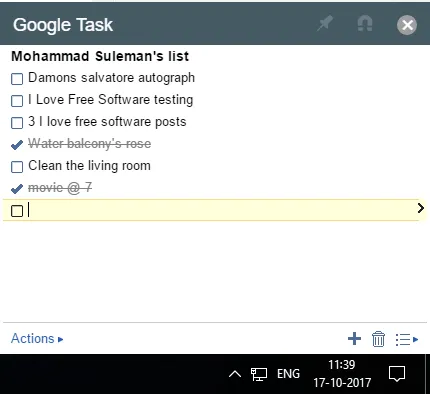
Read more: Free Medicine Management Software For Windows »Here is a free open source Google Tasks client for Windows. Use it to manage your daily tasks right from top of all your desktop applications easily
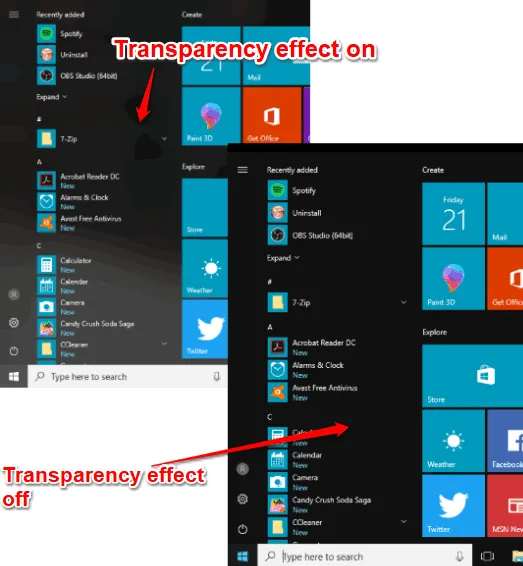
Read more: Free Open Source Google Tasks Client for Windows »This tutorial explains how to disable all transparency effects in Windows 10. It will remove transparency effect from taskbar, Start menu, apps, etc.
Read more: How To Disable All Transparency Effects In Windows 10 »This tutorial covers how to add Recycle Bin to Windows 10 system tray. You can also see total number of files available in Recycle Bin and their total size.
Read more: How To Add Recycle Bin To Windows 10 System Tray »